
How to Print DICOM Images on a Windows Printer
DICOM (Digital Imaging and Communications in Medicine) is the standard format for medical imaging, used in radiology, cardiology, and other medical fields. While DICOM images are typically viewed on specialized medical monitors, there are times when printing them on a regular Windows printer is necessary—for documentation, patient records, or referrals.
In this blog, we’ll guide you through the process of printing DICOM images on a Windows printer using DICOM print software.
Why Print DICOM Images on a Windows Printer?
Medical imaging facilities often rely on dedicated DICOM printers. However, using a standard Windows printer has several advantages:
• Cost-Effective: No need for expensive DICOM-compliant printers.
• Flexibility: Print images on any standard inkjet or laser printer.
• Ease of Use: Works with common printing formats like PDF and JPEG.
• Accessibility: Enables doctors and patients to access printed reports anywhere.
Methods to Print DICOM on a Windows Printer
Using DICOM Print Software
The easiest way to print DICOM images on a Windows printer is by using DICOM print software. Many DICOM viewers include built-in printing features, but some dedicated software solutions provide better formatting and quality.
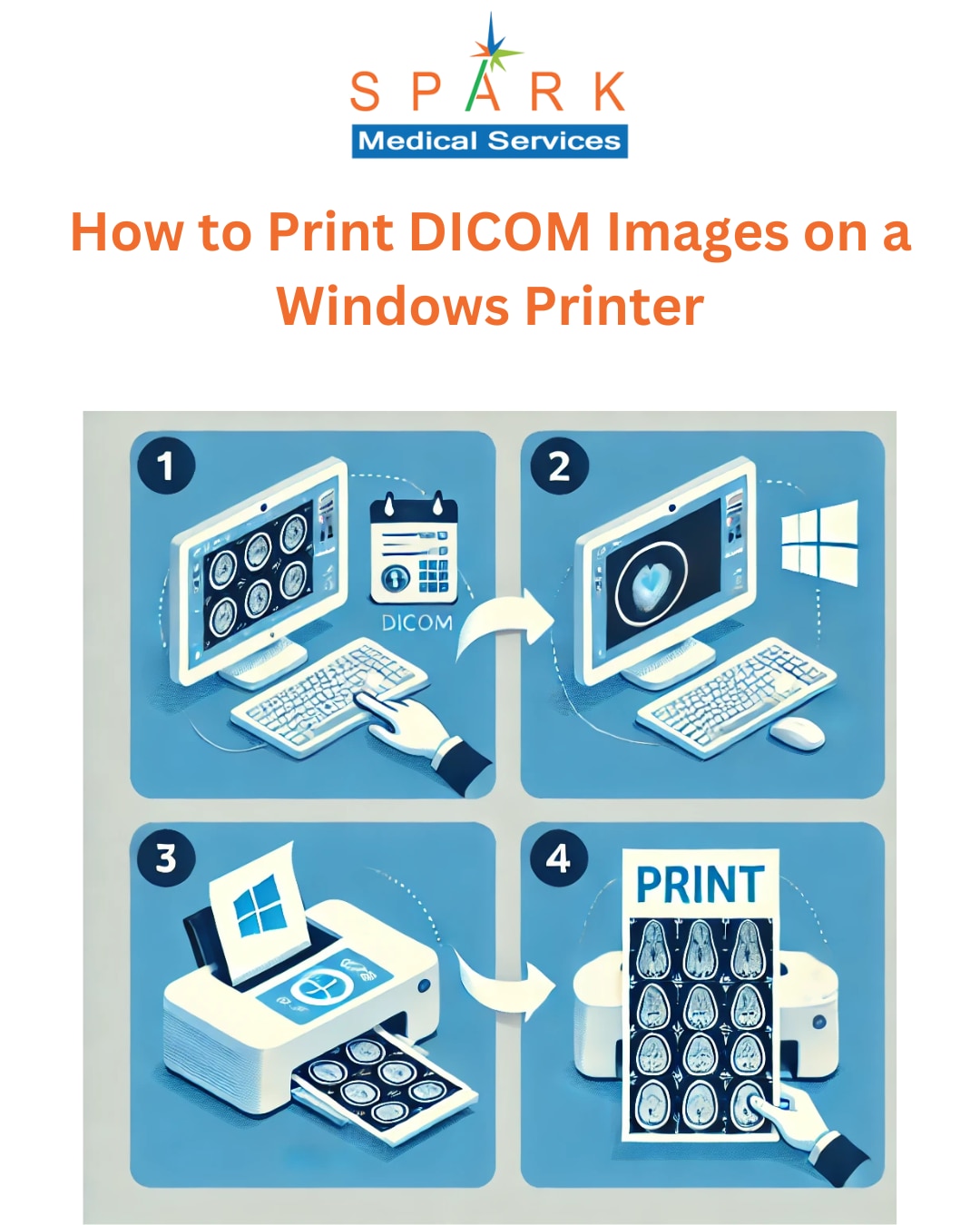
Steps to Print Using DICOM Print Software:
1. Download and Install DICOM Print Software
• Choose software like Spark Medical Services’ DICOM Print Solution.
2. Open the DICOM File
• Most DICOM files come in .dcm format. Open the file in your chosen software.
3. Adjust Image Settings
• Modify contrast, brightness, and grayscale to optimize print quality.
4. Select Print Option
• Choose the Windows printer from the print menu.
5. Print the Image
• Adjust the page layout, scaling, and format before confirming the print.
Best Practices for Printing DICOM Images
To ensure high-quality prints, follow these best practices:
• Use High-Resolution Printers: A laser printer with at least 600 DPI ensures better clarity.
Adjust Contrast and Brightness: Proper adjustments enhance visibility.
• Choose the Right Paper: Glossy or high-quality matte paper works best for detailed images.
• Ensure Proper Scaling: Maintain the aspect ratio to prevent image distortion.
Conclusion
Printing DICOM images on a Windows printer is simple with the right tools. Whether using dedicated DICOM print software or converting images to PDF/JPEG, you can achieve high-quality prints without investing in expensive medical-grade printers.
If you’re looking for DICOM printing software, consider Spark Medical Services’ DICOM Print Software, designed for seamless Windows printer integration.
For any questions or recommendations, feel free to reach out!